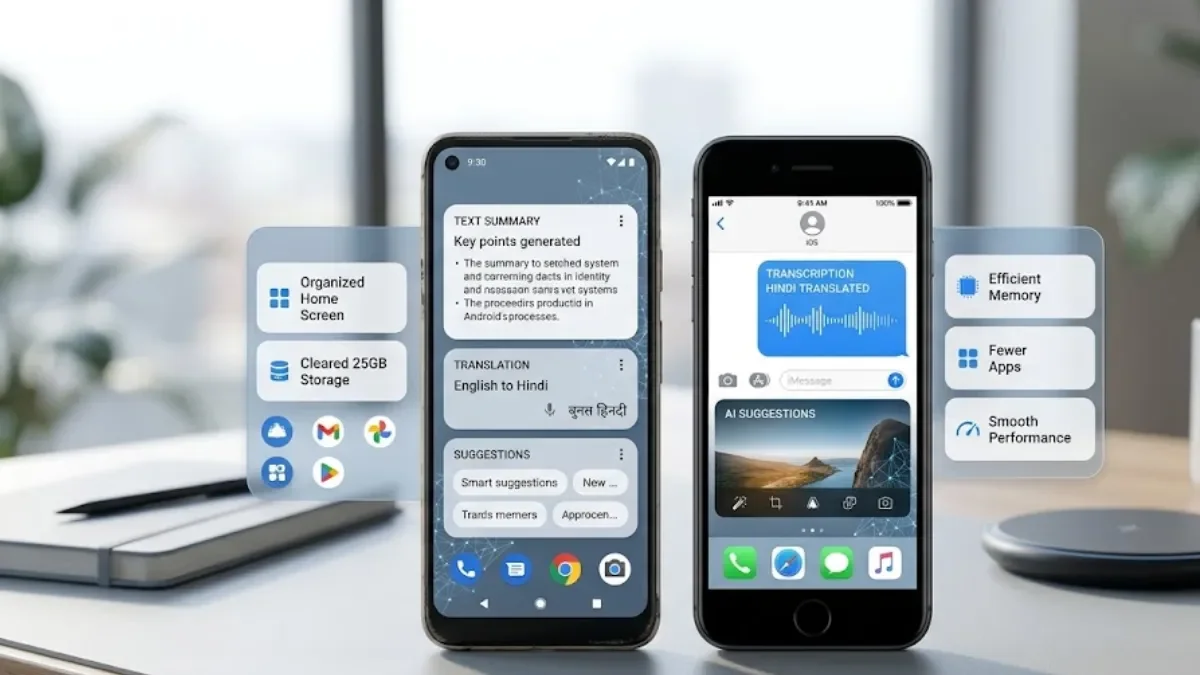
An older phone does not always need a factory reset or a new device to feel more useful. On-device AI can reduce repetitive work, organize information, improve accessibility and automate everyday tasks, although the biggest performance gains on an aging phone still come from freeing storage, updating software and reducing unnecessary background activity.
The important catch is compatibility: not every old Android or iPhone supports modern on-device AI. Google's Android AICore, for example, requires Android 14 or later and device/manufacturer support, while Apple's current Apple Intelligence requires supported newer iPhone hardware. Google Help
Can on-device AI actually make an old phone faster?
AI does not magically increase the processor speed or RAM of an old smartphone.
Instead, AI can make the phone feel more efficient by handling tasks that would otherwise require several apps, manual searches or repeated typing. Examples include summarising information, transcribing recordings, translating text, proofreading messages and generating quick responses.
At the same time, basic phone maintenance remains important. Google says an Android device can start experiencing issues when less than 10% of storage is free, making storage management one of the first things to check on a slow phone. Google Help
Step 1: Check whether your phone supports on-device AI
Before installing AI applications, check your operating system and hardware.
On Android, Google's AICore provides on-device generative AI capabilities on supported Android 14-and-later devices. It can run models such as Gemini Nano directly on compatible hardware. Google Help
On iPhone, Apple Intelligence currently requires an Apple Intelligence-capable device, including the iPhone 15 Pro/15 Pro Max and iPhone 16 models or later, with supported software and language settings. Apple Support
This means that an older phone may still benefit from AI-powered apps, but it may not support the latest AI features locally.
Quick compatibility guide
| Device | On-device AI situation |
|---|---|
| Older Android below Android 14 | Native Android AICore generally unavailable |
| Supported Android 14+ phone | Some Gemini Nano/AICore features may work |
| iPhone 15/15 Plus | Does not meet Apple's current Apple Intelligence hardware requirement |
| iPhone 15 Pro/Pro Max | Apple Intelligence supported |
| iPhone 16 series and later | Apple Intelligence supported, subject to software/region/language |
| Very old iPhone | Use lightweight AI apps where compatible rather than expecting Apple Intelligence |
Step 2: Free up storage before doing anything else
This is one of the simplest ways to improve an aging phone.
Open your storage settings and look for:
- Unused applications
- Large videos
- Duplicate photos
- Downloaded files
- Offline media
- Old WhatsApp or messaging attachments
- Browser downloads
- Apps you haven't used for months
On Android, Google recommends checking storage and removing unnecessary files or apps. Android can also archive unused applications on supported versions while retaining their personal data. Google Help
Don't blindly delete app data, however. Clearing storage can remove locally stored information, while clearing cache generally removes temporary files. Google Help
Step 3: Use AI to summarise instead of opening multiple apps
One useful role for on-device AI is reducing the amount of manual information processing you do.
For example, supported Android devices can use Gemini Nano through Android's AI infrastructure for tasks such as summarisation, transcription, translation, proofreading and smart replies. Google Help
This can be particularly useful on an older phone because you can turn a long piece of information into a short summary without repeatedly switching between applications.
Try using AI for:
- Summarising notes
- Condensing long text
- Creating reminders from information
- Proofreading messages
- Translating short passages
- Summarising voice recordings
Step 4: Turn voice recordings into searchable information
If your phone supports an on-device transcription feature, use it instead of manually typing long notes.
For example, Android's on-device AI framework supports automatic speech recognition, while Google's Pixel Recorder can use Gemini Nano for on-device summaries of recordings. Google Help
A practical workflow is:
Record → Transcribe → Summarise → Save the important points
This can be useful for:
- Meetings
- Classes
- Interviews
- Ideas
- Personal notes
- Voice memos
It can also reduce the need to keep multiple third-party transcription applications installed.
Step 5: Use AI-powered writing tools
Typing can feel especially slow on an older phone.
AI-powered writing features can help reduce the number of edits you have to make manually.
Depending on your device, AI can help with:
- Grammar
- Spelling
- Rewriting
- Summarising
- Changing tone
- Generating replies
- Translating messages
Apple Intelligence, for example, includes Writing Tools that can proofread, summarise and help adjust written content on supported iPhones. Apple Support
The important point is that these features are productivity tools, not performance upgrades. They help you get tasks done with fewer steps rather than making an old processor physically faster.
Step 6: Use AI for translation instead of separate heavy apps
Translation is another area where on-device AI can be useful.
Android's AICore supports translation capabilities on supported devices. Google Help
On compatible iPhones, Apple Intelligence also supports translation-related features, including Live Translation in supported experiences and languages. Apple Support
If your phone supports these features, you may be able to reduce your dependence on multiple translation utilities.
Step 7: Use AI to reduce app switching
An older phone can feel slow when you constantly move between several applications.
Try combining tasks into one workflow.
For example:
Old method
Open notes → copy text → open another app → search → return to notes → rewrite → send.
AI-assisted method
Select text → summarise or rewrite → copy the result → send.
The fewer unnecessary steps you perform, the more responsive the overall experience can feel.
Step 8: Use Visual Intelligence where supported
Newer compatible iPhones can use Apple Intelligence-powered Visual Intelligence to understand what is on the screen or in front of the camera.
Apple says Visual Intelligence can help users identify objects, search for information and perform actions based on what they are viewing. Apple Support
For an older iPhone that doesn't support Apple Intelligence, don't try to force this feature through unofficial system modifications. Instead, use compatible camera or AI applications available for your particular iOS version.
Step 9: Reduce background workload
AI isn't the only solution.
If your phone is slow, check which applications are constantly running or consuming resources.
On Android, Google's troubleshooting guidance recommends checking for app updates and available storage when dealing with a slow device. Google Help
You can also:
- Remove applications you don't use.
- Update apps.
- Install available system updates.
- Reduce unnecessary widgets.
- Remove excessive home-screen animations where your phone allows it.
- Limit applications that consume unusually high battery or background resources.
- Restart the phone occasionally if an app becomes unresponsive.
Step 10: Use AI without draining the battery unnecessarily
On-device AI still uses the phone's processor.
That means repeatedly running demanding AI features on an already aging device can increase power consumption or heat.
Google recommends reducing screen brightness, restricting high-battery-use apps and using battery-saving features when necessary. Google Help
For an older phone, use AI when it saves you meaningful work rather than running AI features continuously in the background.
Android vs iPhone: Which is better for on-device AI?
The answer depends heavily on the exact model.
Android has a broader range of hardware, so support for features based on AICore and Gemini Nano varies by manufacturer and device. Google's documentation specifically notes that availability varies by device and manufacturer. Google Help
Apple has a more controlled hardware ecosystem, but Apple Intelligence has relatively specific hardware requirements. Current Apple documentation lists iPhone 15 Pro/15 Pro Max and iPhone 16 models or later as supported iPhone hardware. Apple Support
| Feature | Supported Android devices | Supported iPhones |
|---|---|---|
| On-device generative AI | Available on selected devices | Apple Intelligence on selected models |
| AI summarisation | Supported in certain apps/features | Supported |
| AI writing assistance | Available through selected features/apps | Writing Tools |
| AI translation | Supported in selected experiences | Live Translation and other features |
| AI transcription | Supported on compatible devices/apps | Available through selected Apple features |
| Older hardware support | Highly variable | Apple Intelligence has defined hardware requirements |
What if your phone is too old for on-device AI?
Don't assume the phone is useless.
You can still improve the experience by combining lightweight apps with basic optimisation.
Start with:
Free storage → update software → remove unused apps → reduce background workload → optimise battery → use lightweight AI services when needed.
If the phone has very limited RAM, an aging battery or an outdated operating system, software optimisation can only go so far.
In that situation, AI can improve productivity, but it cannot replace a hardware upgrade.
A simple 10-minute AI optimisation routine
If your old phone feels slow, try this sequence:
- Check available storage.
- Delete large files you no longer need.
- Remove unused apps.
- Update your operating system if an update is available.
- Update frequently used apps.
- Check battery-heavy applications.
- Enable supported AI writing or transcription tools.
- Use AI summaries instead of opening multiple apps for simple tasks.
- Turn off unnecessary background features.
- Restart the phone and test the apps you use most.
This combination is more practical than simply installing another AI application and expecting the phone to become faster.
Can AI really extend the life of an old smartphone?
It can extend the usefulness of a phone, but it cannot upgrade its hardware.
A supported AI feature can make everyday tasks quicker and reduce the number of applications or manual steps you need. But if the phone has severely degraded battery health, insufficient storage, very old software or inadequate RAM, AI alone won't solve the underlying problem.
The best approach is to combine AI productivity features with basic phone optimisation.
For Android users, Google's AICore can bring selected generative AI capabilities directly to supported hardware, while Apple's Apple Intelligence provides similar on-device processing on compatible iPhones. Google Help
FAQs
Can AI make an old Android phone faster?
AI cannot increase the phone's physical processing power. It can, however, make some tasks faster and reduce the number of apps and manual steps required.
Can an old iPhone use Apple Intelligence?
Only supported iPhone models can use Apple Intelligence. Apple's current requirements include the iPhone 15 Pro and 15 Pro Max and iPhone 16 models or later. Apple Support
Does on-device AI work without internet?
Some on-device AI functions can work without an internet connection. Google's AICore documentation says supported local AI tasks can run directly on the device, although individual features and applications can have different connectivity requirements. Google Help
Should I factory reset my slow phone?
A factory reset should generally be considered a later troubleshooting step rather than the first solution. Start by freeing storage, removing unused apps, updating software and identifying resource-heavy applications.