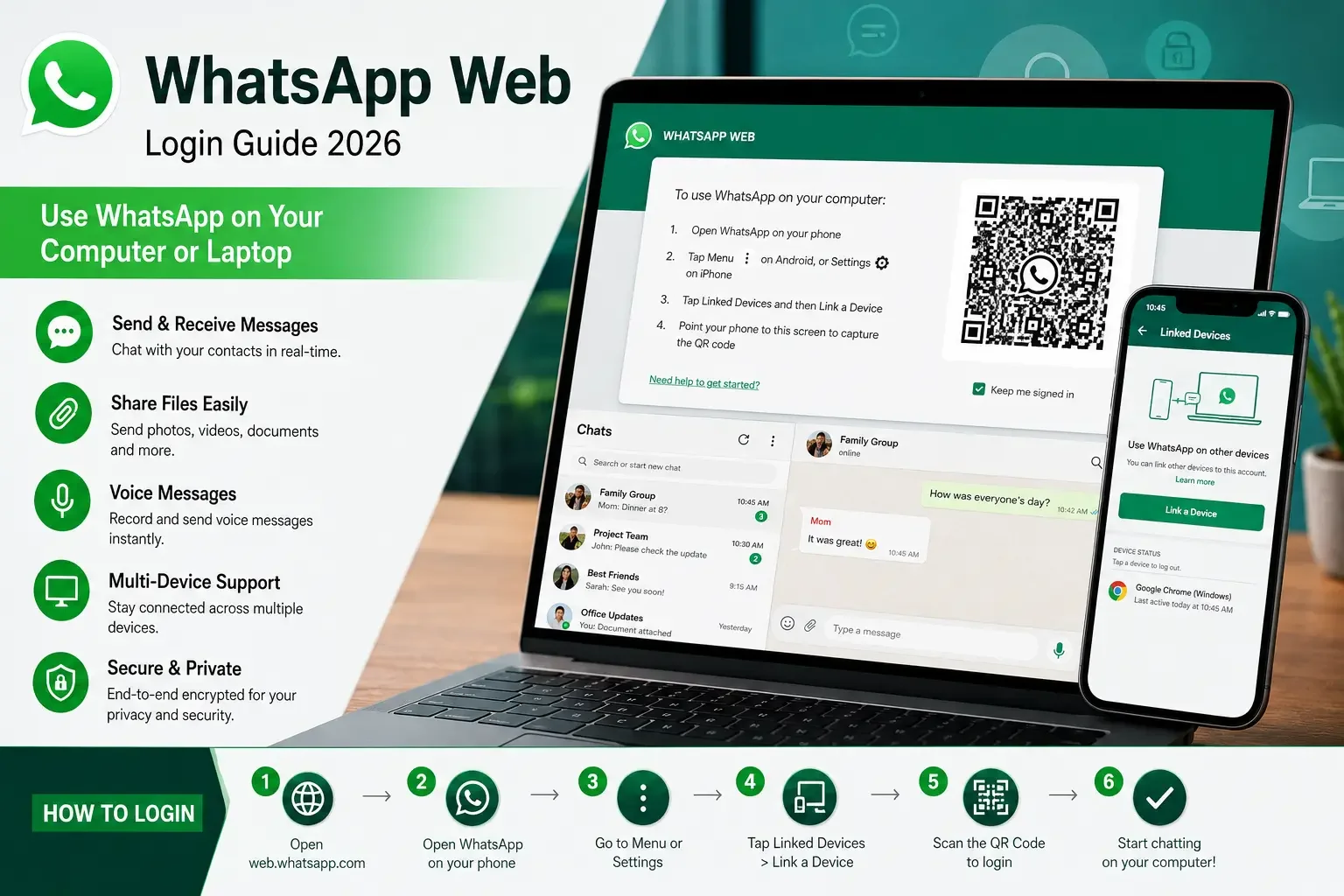
WhatsApp Web Login Guide: Everything You Need to Know in 2026
WhatsApp has become one of the world's most popular messaging platforms, connecting billions of users every day. While most people use it on their smartphones, WhatsApp Web offers a convenient way to send messages, share files, and manage conversations directly from your computer.
Whether you're working from your office, studying on a laptop, or simply prefer typing on a full-sized keyboard, WhatsApp Web provides a fast and seamless messaging experience.
In this complete guide, you'll learn how to log in to WhatsApp Web, use its latest features, troubleshoot common issues, understand security best practices, and explore productivity tips that help you get the most out of the platform.
What is WhatsApp Web?
WhatsApp Web is the browser-based version of WhatsApp that mirrors your account from your mobile device. Once linked, you can access your chats, send messages, share files, and stay connected directly from your desktop browser without installing additional software.
Unlike earlier versions that required your phone to remain connected at all times, modern multi-device support allows WhatsApp Web to continue working even if your phone is temporarily offline after the initial setup.
Why Use WhatsApp Web?
Millions of users prefer WhatsApp Web because it offers:
Faster typing using a physical keyboard
Easy drag-and-drop file sharing
Quick copy-and-paste functionality
Better multitasking while working
Larger screen for reading conversations
Seamless synchronization across linked devices
Support for images, videos, documents, PDFs, and voice messages
How to Login to WhatsApp Web
Follow these simple steps:
Step 1: Open WhatsApp Web
Launch your preferred browser and visit the official WhatsApp Web website.
Step 2: Open WhatsApp on Your Phone
Unlock your smartphone and open the WhatsApp application.
Step 3: Open Linked Devices
Android
Tap the three-dot menu.
Choose Linked Devices.
iPhone
Go to Settings → Linked Devices.
Step 4: Tap "Link a Device"
Authenticate using:
Face ID
Fingerprint
Passcode
Step 5: Scan the QR Code
Point your phone camera at the QR code displayed on your computer.
Within seconds, all your chats will appear on your desktop.
Step 6: Start Messaging
You're now ready to:
Send messages
Share files
Receive notifications
Manage chats
Search conversations
Can You Login Without Scanning the QR Code?
Many users search for "WhatsApp Web login without QR code."
The answer is:
No.
The first login always requires scanning the QR code using your mobile device for security purposes.
Once your browser is linked, future sessions may remain active until you manually log out or remove the linked device.
WhatsApp Web vs WhatsApp Desktop
| Feature | WhatsApp Web | Desktop App |
|---|---|---|
| Browser Required | Yes | No |
| Installation | Not Required | Required |
| File Sharing | Yes | Yes |
| Voice Messages | Yes | Yes |
| Notifications | Yes | Yes |
| Calling Support | Limited depending on browser | Better support |
| Updates | Automatic | Requires app updates |
If you frequently use WhatsApp on a computer, the desktop application may provide a smoother experience, especially where voice and video calling features are supported.
WhatsApp Web Features
Multi-Device Support
Continue using WhatsApp Web even if your phone is temporarily disconnected after the device has been linked.
Send Photos and Videos
Drag and drop media files directly into chats.
Supported formats include:
JPG
PNG
MP4
PDF
DOCX
XLSX
Voice Messages
Record and send voice notes directly from your browser if microphone permissions are enabled.
Search Chats
Instantly search:
Contacts
Messages
Groups
Media
Dark Mode
Enable Dark Mode for a more comfortable viewing experience, especially at night.
Emoji, GIFs and Stickers
Use the built-in emoji picker, stickers, and GIF support to make conversations more engaging.
Keyboard Shortcuts
Increase productivity using shortcuts such as:
New Chat
Archive Chat
Search
Next Conversation
Previous Conversation
Mark as Unread
WhatsApp Web Security Tips
Security should always be a priority.
Follow these best practices:
Log out from public computers.
Enable Two-Step Verification.
Never scan unknown QR codes.
Review linked devices regularly.
Remove devices you no longer use.
Lock your computer when leaving your desk.
Avoid using WhatsApp Web on shared computers without logging out.
How to Logout from WhatsApp Web
From Your Computer
Click the Menu icon.
Select Log Out.
From Your Phone
Open:
Linked Devices
Select the connected computer.
Tap:
Log Out
The browser session will immediately end.
Common WhatsApp Web Problems and Solutions
QR Code Not Loading
Possible causes:
Slow internet
Browser cache
Outdated browser
Solution:
Refresh the page or clear browser cache.
QR Code Won't Scan
Try:
Increase screen brightness
Clean your phone camera
Move closer
Hold the phone steady
WhatsApp Web Keeps Disconnecting
Possible reasons:
Internet issues
Browser problems
Linked device expired
Solution:
Reconnect using Linked Devices.
Notifications Not Working
Check:
Browser notification permissions
Operating system notification settings
Focus mode or Do Not Disturb
WhatsApp Web Is Slow
Improve performance by:
Closing unused browser tabs
Updating your browser
Restarting your device
Clearing cached files
WhatsApp Web Privacy Features
WhatsApp Web includes several security protections:
End-to-end encrypted messages
Device authentication
Session management
Linked device controls
Automatic logout after unlinking
These features help ensure your conversations remain secure across connected devices.
WhatsApp Web Productivity Tips
Professionals often use WhatsApp Web throughout the workday.
Some useful tips include:
Pin Important Chats
Keep frequently contacted people at the top.
Archive Conversations
Reduce clutter without deleting messages.
Star Important Messages
Quickly find key information later.
Use Labels (Business Accounts)
Organize customers more efficiently.
Share Documents Faster
Drag files directly into conversations.
Copy and Paste Easily
Working from a computer makes sharing links, emails, and documents much quicker.
WhatsApp Web for Businesses
Businesses commonly use WhatsApp Web for:
Customer support
Order confirmations
Sales inquiries
Appointment reminders
Team collaboration
Sending invoices
Sharing catalogs
Internal communication
Using WhatsApp Business alongside WhatsApp Web can significantly improve workflow efficiency.
Is WhatsApp Web Safe?
Yes.
WhatsApp Web uses the same end-to-end encryption technology as the mobile application.
However, your account remains secure only if you follow good security practices, such as logging out from public devices and protecting your linked sessions.
Frequently Asked Questions (AEO)
What is WhatsApp Web?
WhatsApp Web is the browser-based version of WhatsApp that lets you send and receive messages from your computer after linking your phone.
How do I login to WhatsApp Web?
Open the official WhatsApp Web page, go to Linked Devices in the WhatsApp mobile app, tap Link a Device, and scan the QR code displayed on your computer.
Can I use WhatsApp Web without my phone?
Your phone is required for the initial setup. After linking, multi-device support allows WhatsApp Web to remain usable even if your phone is temporarily offline.
Is WhatsApp Web free?
Yes. WhatsApp Web is completely free to use.
Can I make calls using WhatsApp Web?
Support for voice and video calls depends on the platform and browser. The desktop application generally provides broader calling capabilities than the browser version.
Why is WhatsApp Web not working?
Common causes include:
Poor internet connection
Browser cache issues
Outdated browser
QR code scanning problems
Device synchronization issues
Refreshing the page, updating your browser, or relinking the device usually resolves the issue.
How do I logout from WhatsApp Web?
You can log out from the browser using the menu or remotely through the Linked Devices section in the WhatsApp mobile app.
Can I use multiple computers with WhatsApp Web?
Yes. WhatsApp supports multiple linked devices, allowing you to access your account across compatible computers and browsers.
Key Takeaways
WhatsApp Web lets you use WhatsApp directly from a supported web browser.
The first login requires scanning a QR code from your phone.
Multi-device support improves flexibility after initial setup.
Use security features such as Two-Step Verification and Linked Devices management to protect your account.
Businesses and professionals can improve productivity with WhatsApp Web's file sharing, keyboard shortcuts, and desktop workflow.
Final Thoughts
WhatsApp Web has transformed the way people communicate from desktops and laptops, making messaging faster, more convenient, and better suited for work and personal use. Whether you're managing customer conversations, collaborating with colleagues, or simply chatting with friends, WhatsApp Web delivers a reliable experience across devices.
By following the setup instructions, adopting recommended security practices, and making use of productivity features, you can get the most from WhatsApp Web while keeping your conversations safe.