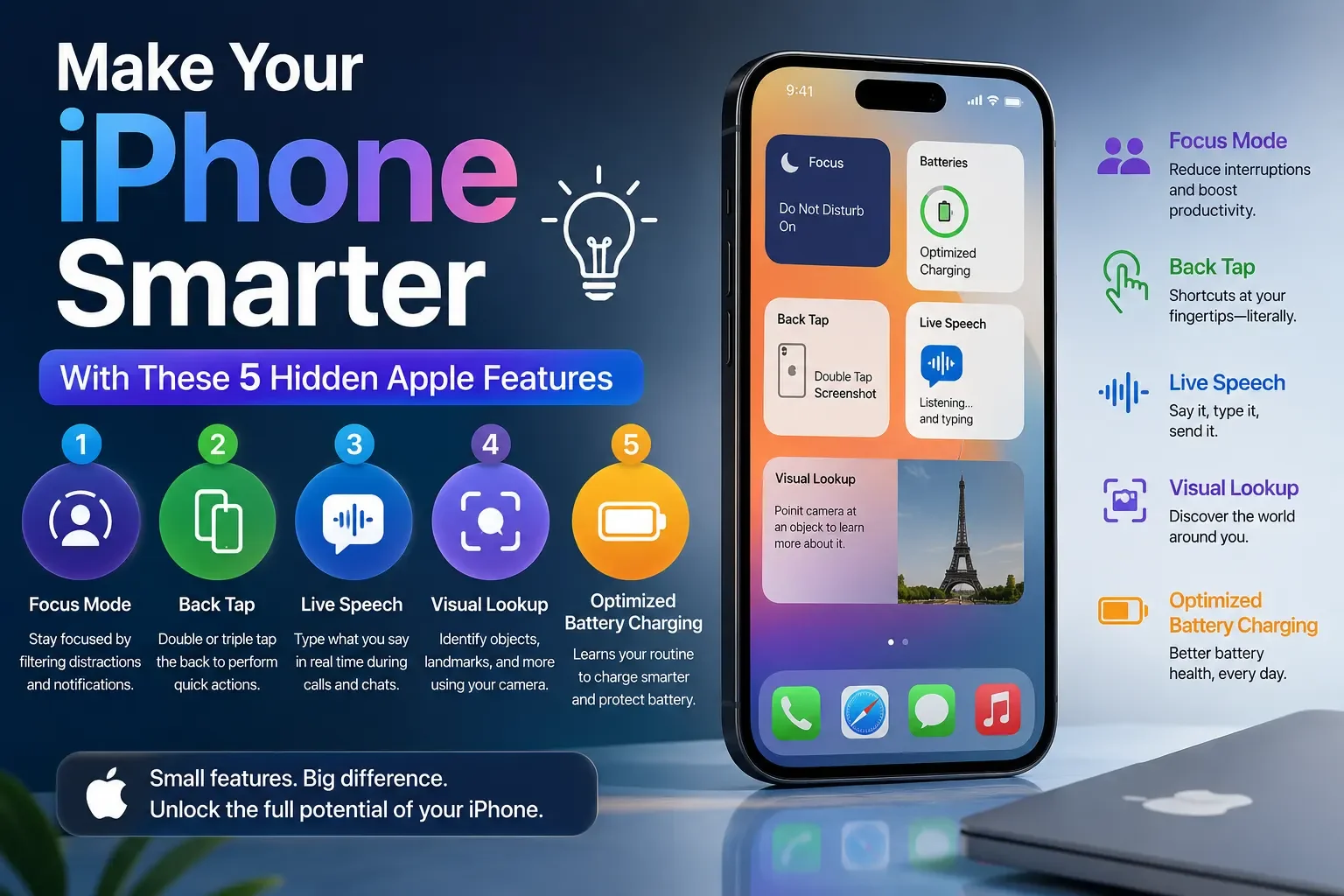
Most people use their iPhones for calling, texting, snapping photos, and scrolling social media. However, beneath the polished interface of iOS lies a collection of powerful tools, clever shortcuts, and hidden settings designed to save time and streamline daily routines.
Whether you want to speed up your typing, protect sensitive personal photos, or trigger shortcuts with a physical tap, these hidden Apple hacks will change how you navigate your iPhone every day.
1. Use Back Tap for Quick Actions
Did you know the back of your iPhone can function like a physical button? With Apple’s Back Tap feature, you can double-tap or triple-tap the back glass to trigger a wide range of system actions, accessibility tools, or custom Shortcuts.
Supported Actions:
- Taking an instant screenshot
- Opening Control Center or Notification Center
- Turning the flashlight on or off
- Muting your device or locking the screen
- Running advanced automated shortcuts from the Shortcuts app
How to Enable Back Tap:
- Open Settings and tap Accessibility.
- Select Touch, then scroll down to the bottom and tap Back Tap.
- Choose either Double Tap or Triple Tap.
- Select the specific action or shortcut you want to assign.
(Note: Back Tap works on iPhone 8 and later models running compatible versions of iOS.)
2. Identify Songs Playing Around You
You do not need a standalone third-party app to find the name of a catchy song playing in a café, store, or TV show. Apple has built-in Music Recognition powered by Shazam directly into the operating system.
How to Add and Use Music Recognition:
- Open Settings and go to Control Center.
- Scroll down to more controls and tap the green (+) icon next to Music Recognition (or Recognise Music).
- Whenever a song is playing, swipe down from the top-right corner of your screen (or swipe up from the bottom on Home-button iPhones) to open Control Center.
- Tap the Shazam icon. A notification banner will appear in seconds with the track name and artist.
3. Turn Your Keyboard Into a Trackpad
Trying to place the text cursor precisely between two letters using your fingertip can often be frustrating. Turning your keyboard into a virtual trackpad allows for smooth, pixel-perfect cursor navigation when editing notes, emails, and messages.
How to Activate the Keyboard Trackpad:
- Open any app where the keyboard is visible (Messages, Notes, Mail, WhatsApp, etc.).
- Press and hold the Space bar for a moment.
- The keyboard letters will turn blank, transforming the entire keyboard area into a smooth trackpad.
- Drag your thumb around the space to glide the cursor directly to the exact spot you need to edit.
- Release your thumb to place the cursor and resume typing.
4. Use Live Text to Copy and Search Information
The Live Text feature uses on-device intelligence to recognize text inside your photos, screenshots, and live camera feed. Instead of manually typing out a phone number, address, Wi-Fi password, or recipe ingredient list, you can interact with the text directly.
What You Can Do With Live Text:
- Copy & Paste: Highlight printed or handwritten text to paste into notes or messages.
- Make Quick Calls & Send Emails: Tap directly on phone numbers or email addresses detected in photos.
- Instant Translations: Highlight foreign phrases to translate them into your preferred language on the spot.
- Search & Look Up: Select specific terms to view web search results or dictionary definitions.
How to Use It:
- Open any photo in the Photos app containing text.
- Tap the Live Text icon (a small document-like frame with text lines) in the bottom-right corner of the image, or simply tap and hold directly over the text.
- Select the text to copy, translate, share, or search.
5. Hide Photos and Protect Private Content
If you occasionally hand your iPhone to friends or family to show vacation pictures, you may not want personal receipts, sensitive documents, or private photos visible in your main camera roll. Apple allows you to move photos to a secure, hidden space protected by biometric security.
How to Hide Photos:
- Open the Photos app and tap the photo (or select multiple photos) you want to hide.
- Tap the three dots (...) menu icon in the top corner.
- Select Hide, then confirm by tapping Hide Photo.
How to Lock the Hidden Album:
- Go to Settings > Photos.
- Toggle on Use Face ID (or Use Touch ID / Passcode).
- Ensure Show Hidden Album is toggled according to your preference.
Once enabled, the Hidden album located under the Utilities section of your Photos app cannot be opened without your Face ID, Touch ID, or device passcode.
Why These Hidden iPhone Features Are Useful
- Productivity Boost: Features like the keyboard trackpad and Live Text remove repetitive manual tasks, saving valuable minutes throughout the day.
- Fewer Unnecessary Apps: Built-in tools such as Shazam Music Recognition and document scanning eliminate the need for bloated third-party utilities.
- Enhanced Privacy: Biometrically locked albums keep sensitive personal and work media secure from casual onlookers.
- Personalized Workflow: Customizing gestures like Back Tap tailors your device to your specific daily needs.
Tips Before Trying These iPhone Hacks
- Keep iOS Updated: For the best performance and compatibility, update your device to the latest available iOS version (Settings > General > Software Update).
- Check Device Compatibility: Certain advanced features, like Live Text or Back Tap, require specific processing capabilities and are supported on iPhone 8, iPhone XS, or newer models.
- Language & Region Settings: Live Text and translation tools depend on supported regional languages configured on your device.
Frequently Asked Questions (FAQs)
What are the best hidden features on an iPhone?
Some of the most practical hidden features include Back Tap shortcuts, the keyboard trackpad, Live Text extraction from photos, built-in Music Recognition, and locked Hidden Photo albums.
How do I enable Back Tap on my iPhone?
Navigate to Settings > Accessibility > Touch > Back Tap, then assign your preferred action to either Double Tap or Triple Tap.
Can I identify songs using my iPhone without downloading an app?
Yes. You can add the Music Recognition tool to your Control Center via Settings > Control Center to identify songs instantly without opening the Shazam app.
How do I turn my iPhone keyboard into a trackpad?
Simply press and hold the Space bar on your on-screen keyboard until the key letters disappear, then slide your finger to move the cursor smoothly.
Which iPhone hacks work on older models?
The keyboard trackpad and photo hiding features work on almost all modern iOS devices, while Back Tap requires an iPhone 8 or newer and Live Text requires an iPhone with the A12 Bionic chip (iPhone XS/XR) or later.
Read More: iPhone 18 Pro Max September 9 Launch? Here Are the Biggest Rumoured Upgrades
Conclusion
Your iPhone is equipped with sophisticated built-in tools designed to make everyday mobile tasks effortless. Taking a few minutes to configure shortcuts like Back Tap, master the keyboard trackpad, and leverage Live Text will make your daily smartphone experience significantly faster, smarter, and more secure.
For a step-by-step visual demonstration of configuring quick shortcuts, check out Apple's Official Guide on How to Use Back Tap on iPhone. This official tutorial provides a quick walkthrough of setting up double and triple-tap gestures on your device.